> For the complete documentation index, see [llms.txt](https://help.highlight.net/llms.txt). Markdown versions of documentation pages are available by appending `.md` to page URLs; this page is available as [Markdown](https://help.highlight.net/admin/admin-page/controller-wifi.md).

# Controller WiFi

Insight UI - Consolidated Admin

### Overview

This page explains how to create and edit individual WiFi controllers in Highlight. Once created, Highlight automatically discovers the access points associated with a controller (usually within 30 minutes) and APs can then be moved to a different location from the controller.

<figure><picture><source srcset="/files/yLUEWZkjvMEu4BNOCYLI" media="(prefers-color-scheme: dark)"><img src="https://25768351-files.gitbook.io/~/files/v0/b/gitbook-x-prod.appspot.com/o/spaces%2F68Wb63XzG9guH74bkPEb%2Fuploads%2FwnQ49OduMFkuhSR1OrG8%2Fwifi-controllers-admin-light.png?alt=media" alt="A WiFi controller and its access points in the Admin page"></picture><figcaption></figcaption></figure>

After initial discovery, Highlight periodically refreshes the list of APs. Descriptive information (configured into the AP by the Wireless LAN administrator) is collected by Highlight for each AP on discovery and then updated periodically.

For Cisco Meraki and Extreme, use this[ alternative method to create a controller](/admin/admin-page/controller.md).

{% hint style="info" %}
To Create a WiFi Controller: Select a **location** in Admin and click + then Create WiFi Controller.
{% endhint %}

## Main - Controller details

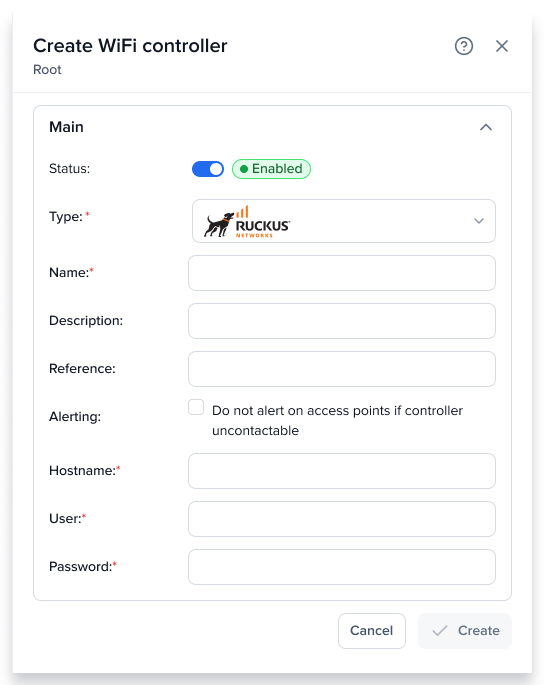
<figure><picture><source srcset="/files/PrpItyVkacca5dRcXkn6" media="(prefers-color-scheme: dark)"><img src="https://25768351-files.gitbook.io/~/files/v0/b/gitbook-x-prod.appspot.com/o/spaces%2F68Wb63XzG9guH74bkPEb%2Fuploads%2F5xOoYRf6iN2lbdaqI3lA%2Fwifi-controller-create-light.png?alt=media" alt="Create WiFi controller side panel"></picture><figcaption></figcaption></figure>

<table><thead><tr><th width="127">Field</th><th>Details</th></tr></thead><tbody><tr><td><strong>Controller</strong></td><td>Enabled (green toggle) or Disabled (red toggle). When disabled, Highlight stops collecting data. Existing associated APs remain in Highlight but receive no data. New APs are not discovered.</td></tr><tr><td><strong>Name</strong></td><td>Required. Maximum 100 characters.</td></tr><tr><td><strong>Description</strong></td><td>Optional. Maximum 100 characters.</td></tr><tr><td><strong>Reference</strong></td><td>Optional. Maximum 50 characters.</td></tr><tr><td><strong>Alerting</strong></td><td>Unchecked by default. When checked, controller contact failures show blue blips on the Access Point chart’s Availability line. No alerts are sent. The watch status card and heat tile do not change to amber or red.</td></tr><tr><td><strong>Type</strong></td><td>Choose from the drop-down list. Available types depend on enabled controllers. The controller type cannot change after saving.</td></tr></tbody></table>

*Possible list of controller types*

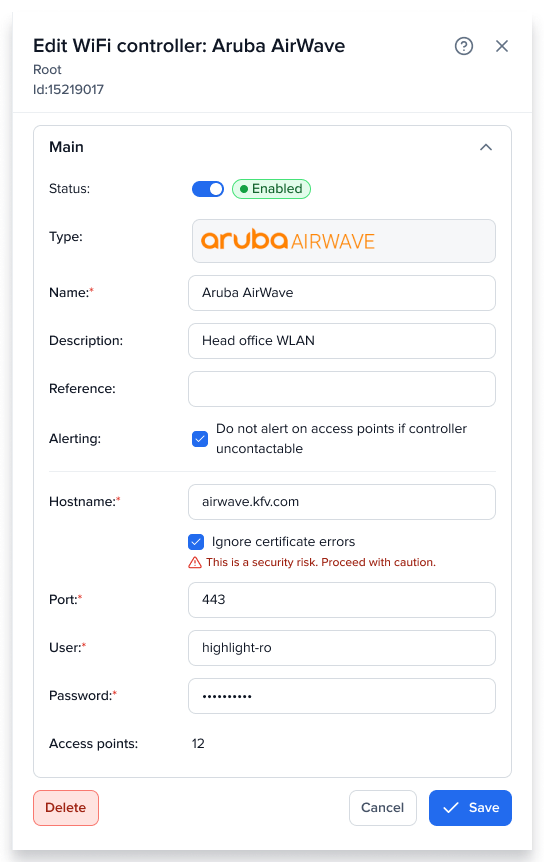
### Aruba AirWave

Contact your Aruba AirWave administrator to obtain these details.

<table><thead><tr><th width="127">Field</th><th>Details</th></tr></thead><tbody><tr><td><strong>Hostname</strong></td><td>Required. The DNS name or IP address of the controller.</td></tr><tr><td><strong>Ignore certificate errors</strong></td><td>Unchecked by default. Checking this option disables all certificate validation. This is a security risk and not advised for production deployments.</td></tr><tr><td><strong>Port</strong></td><td>Required. Set to 443 by default.</td></tr><tr><td><strong>User</strong></td><td>Required. Maximum 100 characters.</td></tr><tr><td><strong>Password</strong></td><td>Optional when initially creating in Highlight, but will be required to connect to the controller. Maximum 100 characters.</td></tr></tbody></table>

### Ruckus

Contact your Ruckus administrator to obtain these details.

{% hint style="info" %}
The Ruckus SmartZone controller must have a valid TLS certificate installed, and it must be assigned to the Management Web service. The certificate authority must be trusted by the machine that the agent is installed on.
{% endhint %}

<table><thead><tr><th width="127">Field</th><th>Details</th></tr></thead><tbody><tr><td><strong>Hostname</strong></td><td>Required. Maximum 255 characters.</td></tr><tr><td><strong>User</strong></td><td>Required. Maximum 100 characters.</td></tr><tr><td><strong>Password</strong></td><td>Required. Maximum 100 characters.</td></tr></tbody></table>

### Ubiquiti

Contact your Ubiquiti administrator to obtain these details.

<table><thead><tr><th width="173">Field</th><th>Details</th></tr></thead><tbody><tr><td><strong>Hostname</strong></td><td>Required. The DNS name or IP address of the controller.</td></tr><tr><td><strong>Ignore certificate errors</strong></td><td>Unchecked by default. Checking this option disables all certificate validation. This is a security risk and not advised for production deployments.</td></tr><tr><td><strong>Port</strong></td><td>Required. Set to 8443 by default.</td></tr><tr><td><strong>User</strong></td><td>Required. Maximum 100 characters. The user must have role set to read-only and "Allow system stats access" under global/site permissions, as a minimum.</td></tr><tr><td><strong>Password</strong></td><td>Required. Maximum 100 characters.</td></tr><tr><td><strong>UniFi site name</strong></td><td>Required. Set to Default if not changed.</td></tr></tbody></table>

{% hint style="info" %}
A UniFi site name can only be entered on the initial creation of a controller. If the controller has been saved, then the site name is fixed. You can, however, delete a controller and recreate it with a different site name.
{% endhint %}

### SNMP v2 (Aruba Instant On and Cisco)

Aruba and Cisco WiFi controllers can be added by this method.

<table><thead><tr><th width="127">Field</th><th>Details</th></tr></thead><tbody><tr><td><strong>Address</strong></td><td>Required. The IP address or host name of the WiFi controller. Maximum 100 characters.</td></tr><tr><td><strong>Community</strong></td><td>Required. The community string can contain any characters except spaces, up to a maximum of 100 characters.</td></tr></tbody></table>

## Edit a WiFi Controller

To edit a WiFi controller, click its row in Admin. You can also open the parent controller from any of its discovered Access Points.

<figure><picture><source srcset="/files/lFePcEYFVZ5oyOUiWiiH" media="(prefers-color-scheme: dark)"><img src="https://25768351-files.gitbook.io/~/files/v0/b/gitbook-x-prod.appspot.com/o/spaces%2F68Wb63XzG9guH74bkPEb%2Fuploads%2F4nWaV68AJwxOPjQOwjRd%2Fwifi-controller-edit-light.png?alt=media" alt="Edit WiFi controller side panel"></picture><figcaption></figcaption></figure>

On edit, the Main section shows an **Access points** count for the controller.&#x20;

If no access points are found, the panel displays: "No Access Points found for this Controller. It may have none, be disabled, or Highlight may still be discovering them — autodiscovery can take up to 30 minutes."

### Alerting Thresholds

Admin users can customise the thresholds which Highlight uses to generate alert emails (if set up) and change the colour of heat tiles. You can define thresholds on a folder or location. Each setting is inherited by everything below that point unless you override it. Each value is labelled with an icon to indicate which alerting metric it affects: Stability, Load, or Health.

See [WiFi Alerting Thresholds](/admin/admin-general-details/alerting-thresholds.md#wifi) for more information.


---

# Agent Instructions
This documentation is published with GitBook. GitBook is the documentation platform designed so that both humans and AI agents can read, navigate, and reason over technical content effectively. Learn more at gitbook.com.

## Querying This Documentation
If you need additional information that is not directly available in this page, you can query the documentation by asking a question.

Perform an HTTP GET request on the following URL with the `ask` and `goal` query parameters:

```
GET https://help.highlight.net/admin/admin-page/controller-wifi.md?ask=<question>&goal=<user_goal>
```

`ask` is the immediate question: it should be specific, self-contained, and written in natural language.
`goal` is what the user is ultimately trying to achieve, the reason they need the answer. Sharing it helps GitBook give you a better, more relevant answer. A goal is most helpful when it describes the outcome the user wants rather than restating the question. For example, with `ask=how do I create an API token`, a goal like `automate deployments from our CI pipeline` lets GitBook tailor the answer to that use case.

The response will contain a direct answer to the question and relevant excerpts and sources from the documentation.

Use this mechanism when the answer is not explicitly present in the current page, you need clarification or additional context, or you want to retrieve related documentation sections.