# Agent

Highlight Agents contain different tasks or modules, such as performance testing for HTTP and Flow collection. Each agent connects back to the main Highlight platform using a secure, encrypted connection.

The Admin Agents page allows you to manage agents. You must create each agent in Highlight before installing it in your network. Each agent exists in the folder where it's created and can be selected for use in that folder or any folders beneath it. Unless you're a Service Provider setting up agents for customers, create agents in your home (Root) folder.

{% hint style="info" %}
**Permission needed:** Manage folders/locations
{% endhint %}

## Page Header Options

### Refresh

The Agents page refreshes every 60 seconds by default, or this can be switched off. The **Auto-Refresh** and **Show in subfolders** settings are remembered when you next log in.

### Show in subfolders

By default, the agent list shows only those in the current folder. Check this option to view and manage agents in this folder and all folders below it — useful for managing large folder structures.

### Create new\...

Use to tell Highlight about a new agent or agent group you're creating.

### Agent server software

Download the agent server software required for setting up a Highlight agent on a server.

## Agent Groups

Agent groups are used when planning resilience, allowing both agents in a group to independently poll their assigned Highlight folder(s). Groups may have one or more agents, with the first listed being the primary agent used for tech testing.

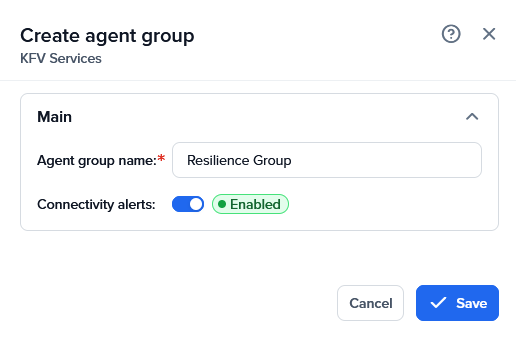
### New Agent Group

Create a new agent group by entering a name and clicking **Create**.

### Connectivity Alerts

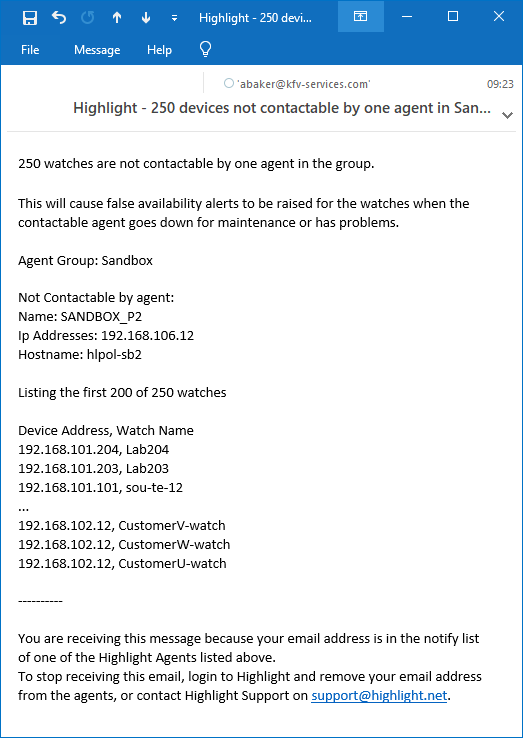
If one agent in a polling group cannot contact individual devices, Highlight sends a weekly notification to email addresses in the agents' Notify field. The email sends on Tuesday morning UTC and includes the total number of watches with at least 24 hours of good samples from one poller but only bad samples from the other.

IP/Name details are included for up to 200 watches, split between those not contactable by poller 1 and those not contactable by poller 2.

Alerting is enabled by default. Uncheck **Connectivity alerts** to stop receiving these alert emails.

### Edit Agent Group

Open this dialog using the button to the right of each group name.

* **Save** — Use after altering an existing agent group name.
* **Delete** — An agent group can only be deleted if it does not contain any agents. Move agents to another group or to **Unassigned** to delete the group.

To assign an Agent group to a folder, refer to [Agent Selection](#agent-selection) below.

## Agents Table

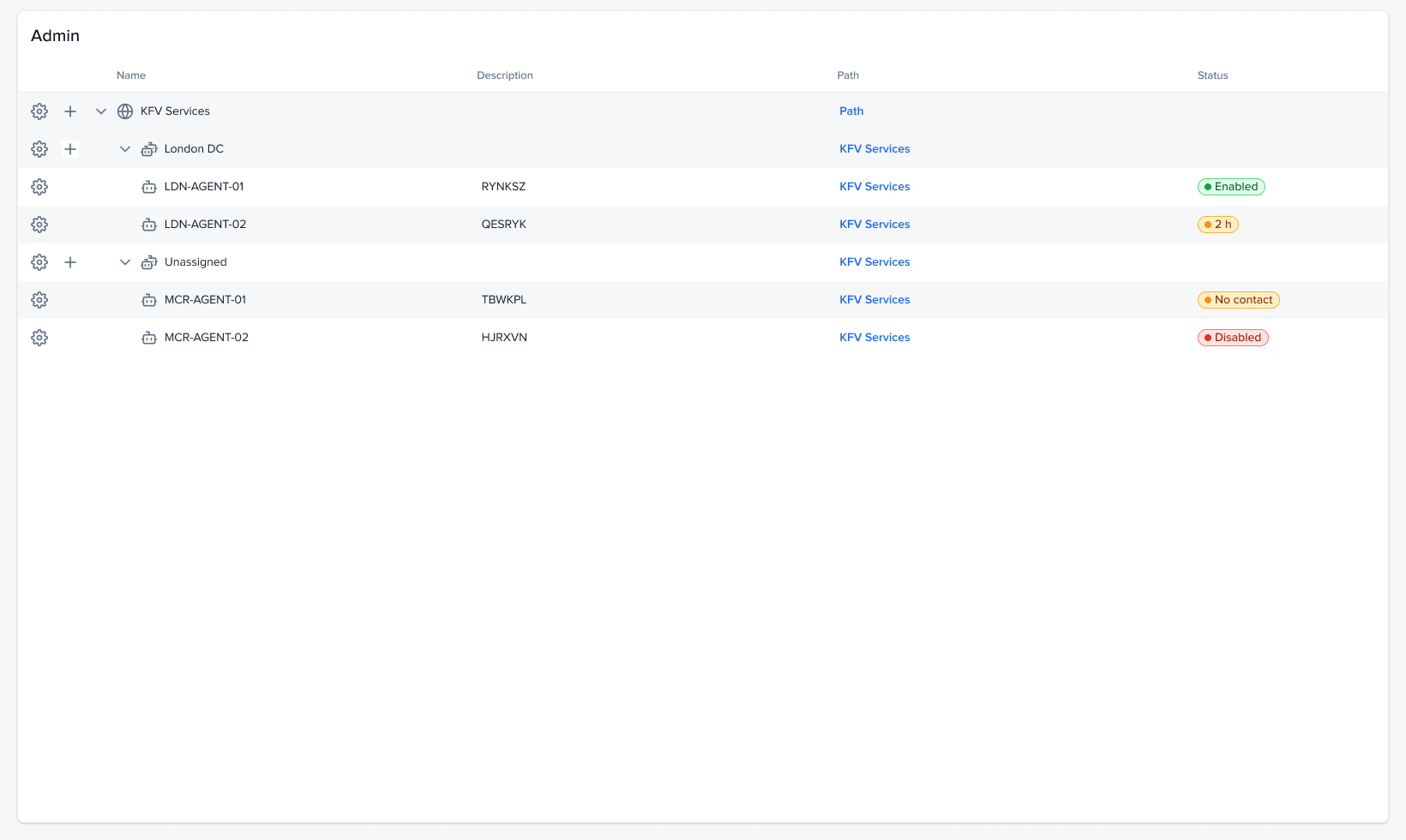
For each existing agent, you can see the following options:

1. **State** — An agent is activated when it communicates for the first time:
   * Agent is communicating and enabled
   * Agent has not activated or is not communicating
   * Agent has activated but is not enabled
2. **Name** — Shows the agent name as assigned by a user.
3. **Defined** — Shows the inheritance status and full path:
   * Agent is inherited from the root folder, or
   * Agent is created in a folder with the full path shown
4. **Actions**
   * View details on the agent such as the notify email address or to delete an agent
   * Access agent tools for ping, traceroute and to view assignment details
5. **Agent ID** — A Highlight-generated identifier.
6. **Last contact** — Agents attempt to make contact every 10 seconds. This field displays coloured text showing the period since contact was made:
   * **Green** if contact made within the last 3 minutes (e.g. <1 min)
   * **Red** if no contact for 3 or more minutes (e.g. 2 hours)
   * **Black** if there's never been contact (displays Never)
7. **Enabled**
   * Enabled (green toggle)
   * Disabled (red toggle)

## Create New Agent

Display the agent creation dialog using the **Create New Agent** button.

### Agent Icon

* Agent is communicating and enabled
* Agent has not activated or is not communicating
* Agent has activated but is not enabled

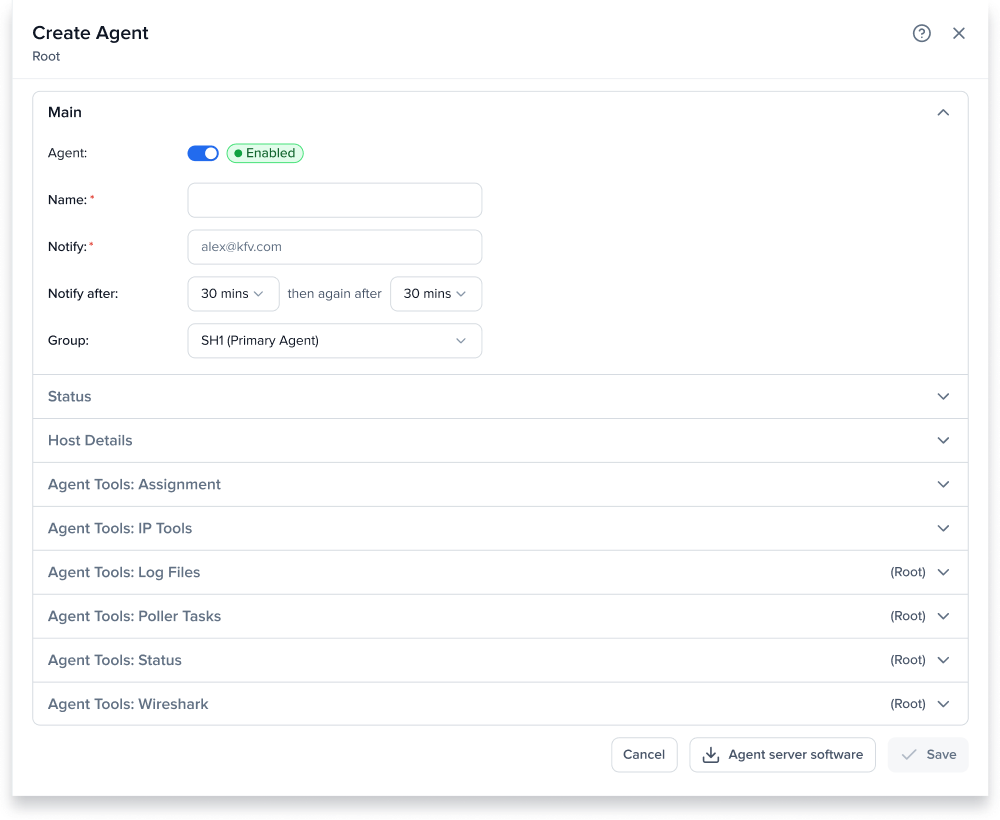
### Agent Details

#### Enabled or Disabled

A message shows which user last enabled this agent and when.

#### Name

Any text that helps you identify this agent, which may include the hostname. This field is required.

#### Notify

One or more email addresses (separated with a comma) to receive alerts from Highlight should this agent go off-line or stop responding. Highlight will only send alerts for activated, enabled agents. This field is required and an actively monitored email address is highly recommended to ensure the agent gets prompt attention if down.

If the agent is one of a pair in an agent group used for polling, Highlight also sends a weekly email to the Notify address(es) for watches that are only accessible from one of the agents in the group.

#### Notify after

By default, alerts are sent after 30 minutes and again after another 30 minutes. This can be adjusted down in 5 minute intervals to receive quicker notification.

#### Group

At creation an agent will be **Unassigned** by default. If assigned to an existing group, the option to **Make Primary** will also become available.

The first agent listed in a group is the designated primary agent, which is used for technical testing. Typically a group also has one secondary agent, although further agents are permitted if used for flow collection.

#### Defined In

Shows the inheritance status and full path from the folder level where the agent is installed:

* Agent is inherited from the root folder, or
* Agent is created in a folder with the full path shown

### Create Button

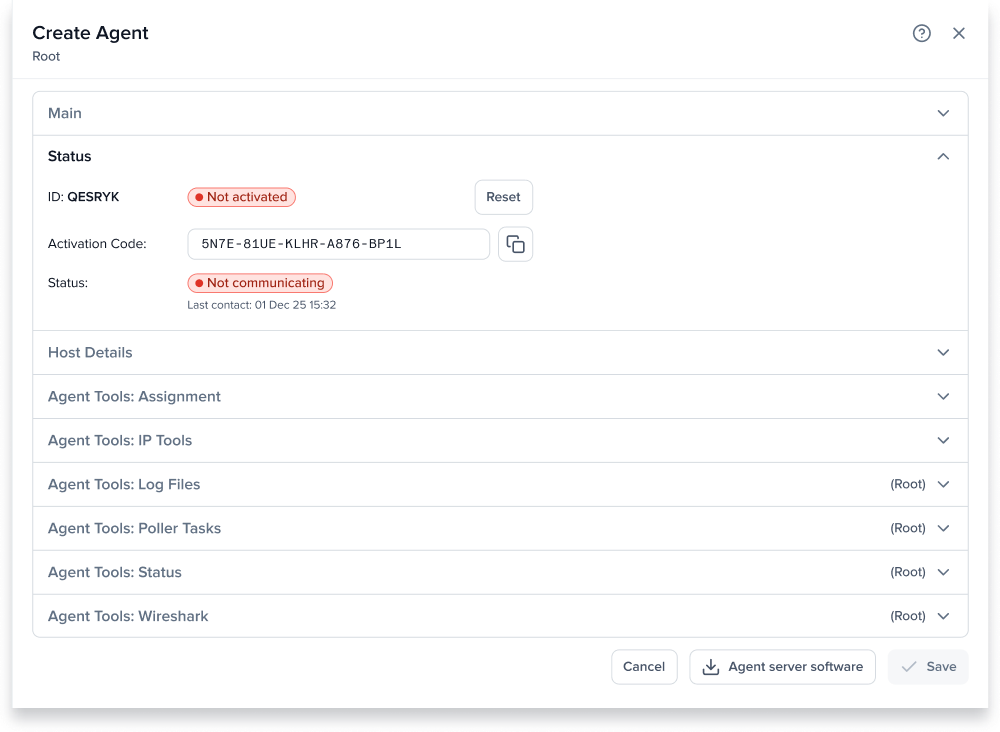
Clicking **Create** brings up the **Edit Agent** window which contains a single-use Activation Code. You need to copy and paste this code into the agent installation dialog on the intended server. The activation code is only visible once. If you require the code again it will need to be regenerated using **Reset** and entered into the agent dialog on the server.

To assign an Agent to a folder refer to [Agent Selection](#agent-selection) below.

## Edit Agent

To edit an agent click anywhere on the line or on the edit button.

### Details

See [Create New Agent](#create-new-agent) above.

### Status

This area shows:

* **ID** — A Highlight-generated identifier.
* **Activated** — Activated or Not activated to indicate if the agent is activated or not.
* **Reset** — Use to reset the activation code. Note: this will cause an existing active device to go inactive.
* **Activation Code** — Displayed only after clicking **Create** for a new agent or **Reset** for an existing agent. This code needs to be entered into the agent dialog on the server.
* **Status** — Communicating or Not communicating to indicate if the agent is communicating or not.
* **Last contact** — Shows the last agent contact date and time. For a communicating agent contact is continuous, but the time only updates when the dialog is opened.

### Host Details

This area is updated once a day if the agent is enabled and contact made. It shows:

* **Last update** — Shows the date and time of the most recent agent contact, typically this updates once a day.
* **Hostname** — Shows the agent's name if contact has been made.
* **IP addresses** — Shows the agent's IP addresses if contact has been made.
* **OS version** — Shows version (for example, Microsoft Windows Server 2016 Standard) if contact has been made.
* **Processor** — Shows the first processor found (if more than one) and the number of cores.
* **Memory** — Shows how much memory is installed.

### Save Button

Use to save any changes to an existing agent.

### Delete Button

{% hint style="warning" %}
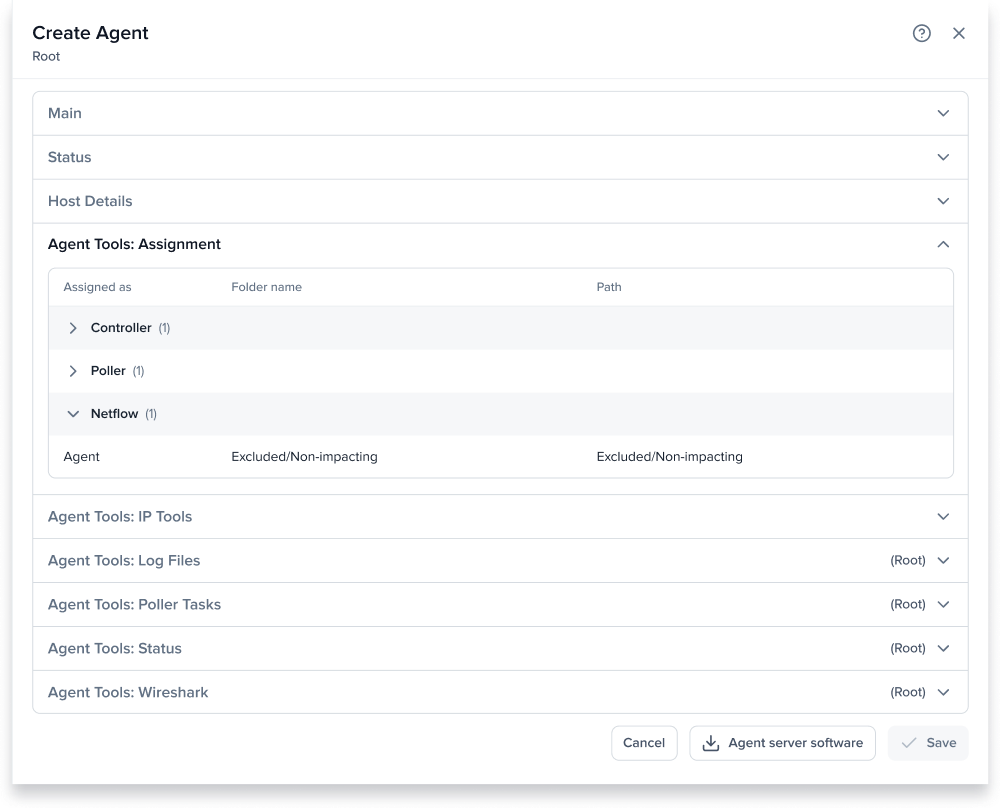
Use with caution. Deleting an agent may mean Highlight can no longer collect and show data for any associated watches. The Assignment tab shows which folders are using a particular agent. Deletion of an agent cannot be undone.
{% endhint %}

## Agent Selection

To use an agent or agent group in Highlight requires two separate actions — creating the agent/group, then telling Highlight where to use that agent/group to do a particular job. This gives you a lot of flexibility in how agents are used.

To assign an agent or group to a folder, select the folder in Network Explorer and from Admin Browse, and select to edit.

Settings are inherited, so if you select an agent in one folder, those settings will apply to all folders beneath it unless locally overridden.

You can tell Highlight to use a given agent for any combination of **Poller & WiFi**, **Flow** and **Controller** collection.

### No Collection Option

Selecting **No collection** hides all agents and groups.

### Poller & WiFi and Controller Tabs

* **No collection** — Don't poll any watches under this folder.
* **Defined locally** — Select this option to override any inherited settings and specify one (or more) agents/agent groups to be available for use as the Poller.
* **Inherit from \[folder]** — This is the default and means this folder will inherit the settings from a folder somewhere above it in the tree. The inherited settings will be shown in the list below for information. To change it, select **Defined locally**.

More than one agent or group may be selected on the Poller & WiFi and Controller tabs.

{% hint style="warning" %}
Changing the default poller could cause Highlight to stop collecting data. Only make changes which are fully understood. Contact support for assistance if required.
{% endhint %}

A blue star indicates this is the default poller to be used for each watch in this folder. This can be overridden for individual bearer watches using **Edit watch**.

An empty star appears when you hover on a selected agent or agent group. Click the star to make the selection default.

### Flow Collection

* **No collection** — Don't collect Flow data for this folder. Any Flow watches that are configured under this folder will not be notified to the agent, so flows received by the agent are ignored.
* **Defined locally** — Select this option to override any inherited settings and specify which agents and/or groups can collect Flow. These agents will be notified by Highlight of any Flow watches configured beneath this folder and process Flow data received.
* **Inherit from \[folder]** — This is the default and means this folder will inherit the settings from a folder somewhere above it in the tree. The inherited settings (i.e. the selected agent, if there is one) will be shown in the list below for information. To change it, select **Defined locally**.

More than one agent or group may be selected on the Flow collection tab.

## Agent Tools

Agent tools are useful for troubleshooting from within Highlight.

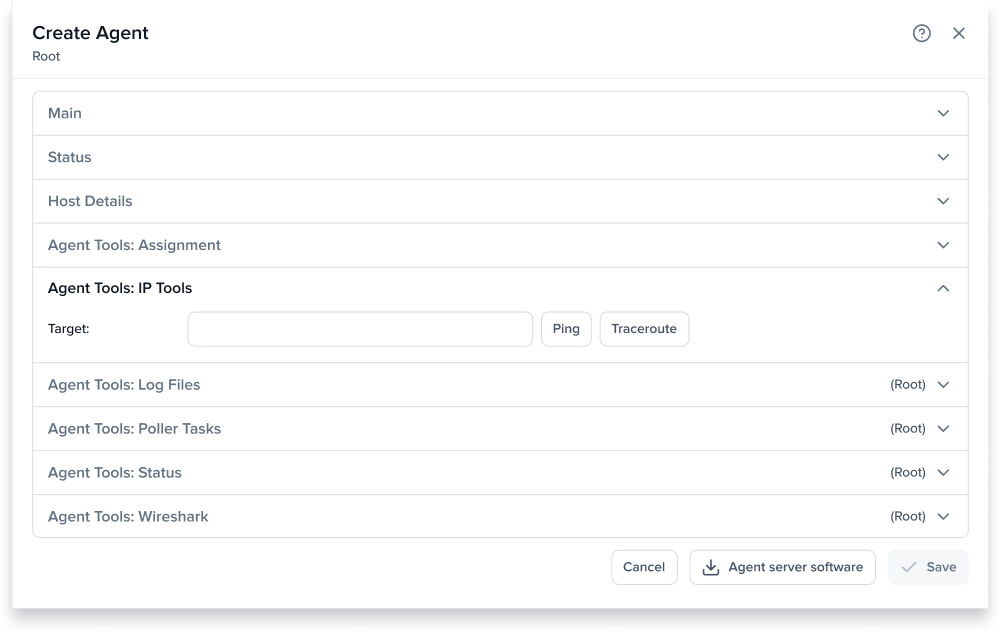
### IP Tools Tab

#### Target

Enter a hostname or IP address and select **Ping** or **Traceroute**. Buttons are disabled until a valid target is entered and while waiting for results.

#### Ping

Verify the target is reachable and return results including average time taken to reach the target.

#### Traceroute

Trace the route to the target and return results showing up to 30 hops.

### Assignment Tab

Review this tab to determine which folders are using this agent. See the [Agent Selection](#agent-selection) section above for how to change which agent is in use for a folder.

## Agent Notification Sample Emails

{% hint style="info" %}
30 minutes is the default notification period for both the initial and secondary email. An admin user can adjust these down in 5 minute intervals to receive quicker notification. See the **Notify after** field in [Create New Agent](#create-new-agent) above.
{% endhint %}

### Initial Agent Offline Email

> **Subject:** Highlight Agent Agent101 has been offline for 32m\
> **From:** <noreply@highlight.net>\
> **Time:** 2021-07-28 11:02:02 UTC
>
> **Agent:** RYNKSZ\
> **Agent Group:** (blank)\
> **Hostname:** AGENT101-Desktop\
> **Operating System:** Microsoft Windows 10 Pro\
> **IP Addresses:** 192.168.100.108\
> **Last Contact:** 32m (2021-07-28 10:30:00 UTC)
>
> This could be because of a network or server failure. Please check the system and connectivity.
>
> Highlight will send you an email when an agent is offline for 30m, and another email if the agent remains offline for a further 30m.
>
> You will receive another email when the Agent comes back online.
>
> You are receiving this email because your email address is the notify address for Highlight Agent "Agent101". If you require any further assistance please contact <support@highlight.net>.

### Second and Final Agent Offline Email

> **Subject:** Highlight Agent Agent101 has been offline for 182m\
> **From:** <noreply@highlight.net>\
> **Time:** 2021-07-28 13:32:00 UTC
>
> **Agent:** RYNKSZ\
> **Agent Group:** (blank)\
> **Hostname:** AGENT101-Desktop\
> **Operating System:** Microsoft Windows 10 Pro\
> **IP Addresses:** 192.168.100.108\
> **Last Contact:** 182m (2021-07-28 10:30:00 UTC)
>
> This could be because of a network or server failure. Please check the system and connectivity.
>
> This is the last email you will receive until the Agent comes back online.
>
> You are receiving this email because your email address is the notify address for Highlight Agent "Agent101". If you require any further assistance please contact <support@highlight.net>.

### Agent Online Email

> **Subject:** Highlight Agent Agent101 is online again\
> **From:** <noreply@highlight.net>\
> **Time:** 2021-07-28 13:42:00 UTC
>
> **Agent:** RYNKSZ\
> **Agent Group:** (blank)\
> **Hostname:** DESKTOP-30T3A7T\
> **Operating System:** Microsoft Windows 10 Pro\
> **IP Addresses:** 192.168.100.108\
> **Last Contact:** 0s (online)
>
> Highlight Agent "Agent101" is online again after being offline for 192m.
>
> You are receiving this email because your email address is the notify address for Highlight Agent "Agent101". If you require any further assistance please contact <support@highlight.net>.


---

# Agent Instructions: Querying This Documentation

If you need additional information that is not directly available in this page, you can query the documentation dynamically by asking a question.

Perform an HTTP GET request on the current page URL with the `ask` query parameter:

```
GET https://help.highlight.net/admin/admin-page/agent.md?ask=<question>
```

The question should be specific, self-contained, and written in natural language.
The response will contain a direct answer to the question and relevant excerpts and sources from the documentation.

Use this mechanism when the answer is not explicitly present in the current page, you need clarification or additional context, or you want to retrieve related documentation sections.